
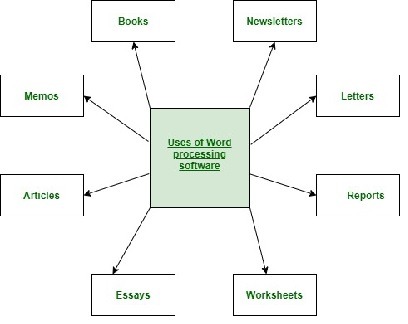
Elements of Word Processing
Word processing refers to the creation, editing, formatting, and printing of documents using specialized software, typically referred to as word processors. Here are the key elements and features of word processing:
- Text Entry: Word processing software allows users to input and edit text easily. This includes the ability to type, delete, insert, and move text within the document.
- Text Formatting: Users can format text by changing font styles, sizes, colors, and effects. Formatting options include bold, italics, underlining, and text alignment (left, center, right, or justified).
- Paragraph Formatting: Word processors allow users to format paragraphs, including setting line spacing, indentation, and margins. Users can also create bulleted or numbered lists.
- Styles and Templates: Users can define and apply consistent styles and templates to maintain a uniform appearance throughout a document. This is particularly useful for longer documents or those with complex formatting requirements.
- Tables: Word processors enable the creation of tables for organizing data or content in rows and columns. Users can customize the look and structure of tables.
- Graphics and Images: Users can insert and manipulate images, diagrams, and other graphical elements within documents. They can resize, position, and wrap text around these objects.
- Spell Checking and Grammar Checking: Word processors include spell-check and grammar-check tools to help users identify and correct errors in their documents.
- Auto-Correction: Word processors often provide auto-correction features that automatically correct common spelling and typing errors.
- Search and Replace: Users can search for specific words or phrases within a document and replace them with alternative text.
- Page Layout: Word processing software allows for customization of page layout elements such as paper size, orientation (portrait or landscape), and margins.
- Headers and Footers: Users can create headers and footers for consistent information at the top and bottom of each page, such as page numbers, document titles, or contact information.
- Sections: Documents can be divided into sections, each with its formatting settings. This is useful for reports, theses, and documents with varying layout requirements.
- Page Breaks and Section Breaks: Users can insert page breaks to start new pages, or section breaks to separate and format different sections of a document.
- Pagination: Word processors handle automatic page numbering and pagination, which is especially helpful for lengthy documents.
- Hyperlinks: Users can insert hyperlinks to web addresses, email addresses, or other documents to provide easy navigation.
- Table of Contents and Indexes: Word processors can automatically generate tables of contents and indexes based on document headings or user-defined markers.
- Collaboration and Comments: Collaboration features allow multiple users to work on a document simultaneously. Comments and revision tracking help users provide feedback and track changes.
- Printing and Exporting: Word processors enable users to print documents directly or export them to various file formats, such as PDF, DOC X, RT F, and HTML.
- Document Management: Most word processing software includes file management features to save, open, and organize documents efficiently.
- Security: Users can protect their documents with password encryption and permissions to control who can view, edit, or print the document.
Word processing software, such as Microsoft Word, Google Docs, and LibreOffice Writer, offers these elements and features to streamline document creation and enhance productivity in various professional and personal settings.
What is required Elements of Word Processing
To effectively use word processing software and create, edit, and format documents, several elements are required. These elements encompass both the software and the skills and resources necessary for word processing. Here’s a breakdown of what’s needed:
- Word Processing Software:
- A computer or device with word processing software installed, such as Microsoft Word, Google Docs, or LibreOffice Writer.
- Computer or Device:
- A computer or mobile device to run the word processing software.
- Operating System:
- An operating system compatible with the chosen word processing software (e.g., Windows, mac OS, Linux, or mobile OS).
- Input Device:
- A keyboard or other input device for text entry.
- Display Device:
- A monitor or screen to view and edit documents.
- Internet Connection (for cloud-based tools):
- An internet connection is required for online word processing tools like Google Docs.
- Basic Computer Skills:
- Proficiency in using a computer, including knowledge of the operating system and file management.
- Text Entry Skills:
- The ability to type and edit text accurately and efficiently.
- Basic Knowledge of Word Processing Software:
- Familiarity with the specific word processing software’s interface, menus, and tools.
- Text Formatting Skills:
- Skills to format text, including changing fonts, font sizes, styles (bold, italic, underline), and text alignment.
- Paragraph Formatting Skills:
- Knowledge of how to set line spacing, indentation, margins, and create bulleted or numbered lists.
- Document Organization Skills:
- Ability to organize and structure content within a document using headings, sections, and styles.
- Image and Graphics Handling Skills:
- Skills to insert, resize, and format images, diagrams, and other graphical elements.
- Proofreading Skills:
- The ability to review and correct spelling and grammar errors using built-in tools.
- File Management Skills:
- Knowledge of how to save, open, and organize documents within the word processing software.
- Internet Skills (for online collaboration):
- Skills to collaborate with others on documents through online platforms, including sharing, commenting, and real-time editing.
- Printing Skills:
- Knowledge of how to print documents using the software, including options for page size, orientation, and quality.
- Hyperlinking Skills:
- Ability to insert hyperlinks to websites, email addresses, or other documents.
- Pagination Skills:
- Knowledge of how to manage page numbering and page breaks.
- Security Skills:
- Skills to protect documents with passwords, encryption, and permissions.
These elements combine the necessary hardware, software, and skills for effective word processing. Proficiency in these areas allows users to create, edit, and format documents efficiently and professionally.
Who is required Elements of Word Processing
The elements required for word processing are not related to specific individuals but rather to the resources, tools, and skills needed for effective word processing. However, the following individuals or roles may require and benefit from these elements in the context of word processing:
- Individual Users:
- Individuals, including students, professionals, writers, and anyone who needs to create or edit text-based documents, require the elements of word processing for personal and professional purposes.
- Administrative Assistants and Secretaries:
- Administrative professionals use word processing tools extensively to draft letters, reports, and other documents in an office setting.
- Writers and Authors:
- Writers and authors use word processing software to draft, edit, and format their manuscripts and writings.
- Educators and Students:
- Teachers and students use word processing for creating assignments, reports, essays, and educational materials.
- Business Professionals:
- Business professionals use word processing for creating business documents, proposals, reports, and communication materials.
- Editors and Proofreaders:
- Editors and proofreaders use word processing to review and edit documents, checking for spelling, grammar, and content quality.
- Content Creators and Bloggers:
- Content creators and bloggers use word processing tools to draft articles, blog posts, and digital content.
- Researchers and Academics:
- Researchers and academics use word processing to write research papers, theses, dissertations, and academic publications.
- Legal Professionals:
- Lawyers and legal professionals use word processing for drafting legal documents, contracts, and court filings.
- Government and Public Sector Workers:
- Government employees use word processing for creating official documents, reports, and communications.
- Journalists and Media Professionals:
- Journalists use word processing for writing news articles, press releases, and media content.
- Healthcare Professionals:
- Healthcare workers use word processing for creating medical reports, patient records, and research documents.
- Nonprofit Organizations:
- Staff in nonprofit organizations use word processing for creating grant proposals, reports, and promotional materials.
- Small Business Owners:
- Entrepreneurs and small business owners use word processing for various business-related documents, such as business plans, marketing materials, and invoices.
- Technical Writers and Documentation Specialists:
- Technical writers use word processing to create user manuals, product documentation, and technical reports.
- Freelancers and Gig Workers:
- Freelancers in various fields, including design, writing, and consulting, use word processing to communicate with clients and deliver their work.
While these individuals or roles often require and use the elements of word processing, word processing skills are increasingly relevant and valuable in a wide range of personal and professional contexts.
When is required Elements of Word Processing
The elements of word processing are required in various situations and scenarios, primarily when there is a need to create, edit, format, or manage text-based documents. Here are some common situations when the elements of word processing are required:
- Academic Assignments: Students need word processing to complete assignments, essays, reports, and research papers.
- Professional Documents: Professionals use word processing for creating business letters, emails, reports, proposals, and other work-related documents.
- Writing and Authorship: Writers, novelists, and authors require word processing to draft and edit manuscripts, books, articles, and other written content.
- Correspondence: Individuals and businesses use word processing for composing letters, memos, and emails.
- Content Creation: Bloggers, content creators, and social media managers use word processing for writing blog posts, social media content, and website copy.
- Legal Documentation: Legal professionals, including lawyers and paralegals, use word processing for drafting legal documents, contracts, and court filings.
- Healthcare Records: Healthcare professionals use word processing for creating and managing patient records and medical reports.
- Government and Public Sector: Government employees use word processing for drafting official documents, policies, and reports.
- Journalism: Journalists and media professionals require word processing for writing news articles, press releases, and editorial content.
- Educational Materials: Educators create lesson plans, handouts, and educational materials using word processing.
- Research and Academia: Researchers and academics use word processing for writing research papers, theses, dissertations, and scholarly publications.
- Business Reports: Business analysts and consultants use word processing for creating financial reports, market research documents, and business plans.
- Technical Documentation: Technical writers create user manuals, product documentation, and technical reports using word processing.
- Freelance Work: Freelancers in various fields, such as graphic design, copy writing, and consulting, use word processing for client communications and project deliverables.
- Personal Use: Individuals use word processing for personal tasks, such as creating resumes, writing letters, or keeping journals.
- Nonprofit and Charity Work: Nonprofit organizations use word processing for writing grant proposals, fundraising materials, and impact reports.
- Small Business Operations: Small business owners use word processing for generating invoices, business letters, and marketing materials.
- Event Planning: Event planners use word processing for creating event proposals, schedules, and promotional materials.
- Technical and Scientific Research: Scientists and engineers use word processing for documenting experiments, research findings, and technical reports.
- Customer Support: Customer support teams use word processing for drafting responses to customer inquiries and creating knowledge base articles.
In essence, word processing skills are applicable in a wide range of personal, educational, and professional contexts whenever written communication and document management are involved.
Where is required Elements of Word Processing
The requirement for the elements of word processing exists in various locations and settings where written communication and document creation are essential. Here are some common places where the elements of word processing are required:
- Office Environments: Word processing is essential in traditional office settings where professionals create and manage documents for business purposes. This includes corporate offices, government offices, and nonprofit organizations.
- Educational Institutions: Word processing is required in schools, colleges, and universities for academic assignments, lesson planning, research papers, and administrative tasks.
- Home Offices: Many individuals working from home or running small businesses require word processing to handle administrative and communication tasks.
- Libraries: Libraries often provide public access to word processing software for patrons to create documents and access digital resources.
- Coffee Shops and Co working Spaces: These venues provide spaces for remote workers and freelancers who use word processing to complete tasks and assignments.
- Internet Cafes: Internet cafes offer access to word processing tools for general users who may not have access to a computer at home.
- Writing Centers: Writing centers on college campuses and in some public libraries offer assistance with word processing for academic and creative writing projects.
- Publishing Houses: Word processing is crucial in publishing for editing, formatting, and typesetting written materials.
- Newsrooms: Journalists and editors in newsrooms use word processing to create news articles, reports, and editorial content.
- Healthcare Facilities: Medical professionals use word processing to maintain patient records, write reports, and communicate with colleagues.
- Legal Offices: Lawyers and legal professionals use word processing for drafting legal documents, contracts, and court filings.
- Research Institutions: Researchers in laboratories and research institutions require word processing for documenting experiments and research findings.
- Technical and Engineering Firms: Technical writers in engineering and technical firms use word processing for creating technical manuals and documentation.
- Content Creation Studios: Content creators, including writers, graphic designers, and social media managers, use word processing to develop content for various platforms.
- Nonprofit Organizations: Nonprofits use word processing for creating grant proposals, reports, and promotional materials.
- Government Agencies: Government employees use word processing for drafting official documents, policies, and reports.
- Business Centers: These centers, often found in hotels or commercial buildings, provide access to word processing facilities for travelers and professionals on the go.
- Public Libraries: Public libraries frequently offer public computers with word processing software for general use.
- Internet Kiosks: Word processing software is often available at internet kiosks in public spaces like airports and shopping centers.
- Online and Cloud-Based Platforms: Word processing tools on cloud-based platforms, such as Google Docs, are accessible from anywhere with an internet connection.
The need for word processing is not limited to physical locations. With the availability of online and cloud-based tools, people can access word processing software from anywhere, making it a versatile and widely used resource for written communication and document management.
How is required Elements of Word Processing
The elements required for word processing are implemented through a combination of software, hardware, and user skills. Here’s how these elements are required and implemented:
- Word Processing Software:
- Software is essential for word processing. Users need to have access to a word processing application, which can be installed on their computers or accessed online via web-based word processors.
- Computer or Device:
- A computer or device (laptop, desktop, tablet, or smartphone) is required to run the word processing software.
- Operating System:
- The chosen word processing software should be compatible with the user’s operating system, such as Windows, mac OS, Linux, or mobile operating systems.
- Input Device:
- Users need input devices like a keyboard or touchscreen to enter text.
- Display Device:
- A display device, such as a monitor or screen, is necessary to view, edit, and format documents.
- Internet Connection (for cloud-based tools):
- For web-based word processing tools, an internet connection is required to access and save documents in the cloud.
- Basic Computer Skills:
- Users should have basic computer skills to operate the computer or device and navigate the operating system.
- Text Entry Skills:
- Proficiency in typing and text entry is crucial for inputting content into the word processing software.
- Basic Knowledge of Word Processing Software:
- Users need to understand the interface, menus, and basic tools of the specific word processing software they’re using.
- Text Formatting Skills:
- Users should have skills to format text, including changing fonts, sizes, styles (bold, italic, underline), and text alignment.
- Paragraph Formatting Skills:
- Knowledge of how to set line spacing, indentation, margins, and create bulleted or numbered lists is important.
- Document Organization Skills:
- Users should be able to organize and structure content within a document using headings, sections, and styles.
- Image and Graphics Handling Skills:
- Proficiency in inserting, resizing, and formatting images, diagrams, and other graphical elements.
- Proofreading Skills:
- Users should be able to review and correct spelling and grammar errors using built-in tools.
- File Management Skills:
- Knowledge of how to save, open, and organize documents within the word processing software.
- Internet Skills (for online collaboration):
- Skills are required to collaborate with others on documents through online platforms, including sharing, commenting, and real-time editing.
- Printing Skills:
- Understanding how to print documents using the software, including options for page size, orientation, and quality.
- Hyperlinking Skills:
- Users should be able to insert hyperlinks to websites, email addresses, or other documents.
- Pagination Skills:
- Knowledge of how to manage page numbering and page breaks within documents.
- Security Skills:
- Skills to protect documents with passwords, encryption, and permissions.
The implementation of these elements varies based on the user’s needs, the type of document they are working on, and their level of proficiency with the word processing software. Effective implementation requires a combination of software tools, hardware, and user expertise to create, edit, and manage documents successfully.
Case Study on Elements of Word Processing
Case Study: Modernizing Document Management with Word Processing
Background: A mid-sized law firm, “Smith & Associates Legal,” was facing document management challenges, which were adversely affecting productivity and efficiency. The firm relied on traditional paper-based documents, and its legal professionals spent considerable time drafting, editing, and organizing legal documents manually. They sought a solution to modernize their document management processes.
Objective: The primary objective was to transition from paper-based document management to a digital system, utilizing word processing software, to enhance efficiency, accuracy, and collaboration among legal professionals.
Key Innovations:
- Implementation of Word Processing Software:
- The firm adopted word processing software, specifically tailored for legal documents, to facilitate the creation, editing, and formatting of legal contracts, briefs, and reports.
- Digital Document Storage and Organization:
- All legal documents, previously stored in filing cabinets, were scanned, converted to digital format, and organized within a secure digital repository. The new system allowed for quick and efficient document retrieval.
- Collaborative Features:
- The word processing software’s collaboration features enabled multiple legal professionals to work on the same document simultaneously. Real-time editing and commenting improved communication and reduced turnaround times.
- Templates and Styles:
- Customized document templates and predefined styles for legal documents were created within the software, ensuring consistency and compliance with legal formatting requirements.
- Document Version Control:
- Version control tools in the word processing software helped track changes, compare versions, and revert to previous document states when necessary.
- Search and Retrieval:
- Advanced search functionality within the digital repository allowed legal professionals to quickly find specific clauses or sections within documents, reducing the time spent on research.
- Integration with Legal Research Tools:
- The software was integrated with legal research databases, enabling legal professionals to seamlessly insert case law references and citations directly into their documents.
Results:
- Efficiency Gains: The adoption of word processing software streamlined document creation and editing processes, reducing the time needed to draft legal documents.
- Accuracy and Consistency: Predefined templates and styles ensured uniform formatting and compliance with legal standards, minimizing errors in documents.
- Collaboration and Communication: Real-time collaboration features improved communication among legal professionals and facilitated teamwork on complex cases.
- Cost Savings: Reduced paper usage and printing costs, as well as the elimination of physical storage needs for paper documents, resulted in cost savings.
- Improved Client Service: Faster document turnaround times allowed the firm to provide more responsive service to clients.
- Enhanced Document Security: Digital document storage offered greater security through access controls, encryption, and backups.
- Compliance and Regulatory Benefits: The system supported compliance with legal document retention and retrieval requirements, which are crucial in the legal field.
Conclusion: The adoption of word processing software and the digitization of document management processes transformed “Smith & Associates Legal.” The firm’s legal professionals embraced the new technology, resulting in increased productivity, accuracy, and collaboration. This case study illustrates how effective word processing, when combined with digital document management, can revolutionize the operations of organizations, even in traditionally paper-intensive sectors like the legal industry.
White Paper on Elements of Word Processing
Certainly, here’s an outline for a white paper on the “Elements of Word Processing” that you can use as a starting point:
Title: Efficiency and Beyond: Understanding the Key Elements of Word Processing
Abstract: This white paper explores the essential components of word processing, shedding light on how they have transformed document creation, editing, and management in the digital age. It delves into the core elements of word processing software, the role they play in enhancing productivity, and the diverse contexts in which they are applied.
Table of Contents:
- Introduction
- The Evolution of Word Processing
- The Significance of Word Processing in Modern Communication
- Word Processing Software: The Foundation
- Defining Word Processing Software
- Prominent Word Processing Tools in Today’s Landscape
- Text Entry and Editing
- Basic Text Entry and Navigation
- Essential Editing Functions
- Text Formatting and Styling
- Fonts, Sizes, and Styles
- Alignment and Spacing
- Paragraph and Document Formatting
- Structuring Paragraphs
- Page Layout, Margins, and Sections
- Document Templates and Styles
- Customizing Document Templates
- Consistency and Efficiency through Styles
- Images and Multimedia
- Incorporating Images and Graphics
- Multimedia Elements and Their Significance
- Collaboration and Revision Control
- Real-Time Collaboration Features
- Version Control and Revision Tracking
- Automation and Macros
- Streamlining Repetitive Tasks
- Harnessing the Power of Macros
- Search, Indexing, and Hyperlinking
- Navigating Documents Efficiently
- Creating Interactive Documents with Hyperlinks
- Data Integration and Cross-Referencing
- Incorporating Data Tables and Charts
- Cross-Referencing for Complex Documents
- Spell Checking and Grammar Tools
- Automated Proofreading
- Improving Document Accuracy
- Document Security and Privacy
- Protecting Sensitive Information
- Encryption and Permissions
- Case Studies: Real-World Applications
- Legal Firms: Streamlining Legal Document Creation
- Academic Institutions: Enhancing Research Papers and Reports
- Business Environments: Improving Communication and Documentation
- Future Trends and Innovations
- Artificial Intelligence in Word Processing
- Voice Recognition and Dictation
- Conclusion
- The Enduring Relevance of Word Processing
- The Ongoing Evolution of Document Creation
References:
This white paper offers an in-depth examination of the key elements of word processing and their significance in modern communication and document management. It concludes by acknowledging the continued evolution of word processing and its essential role in personal and professional contexts.