
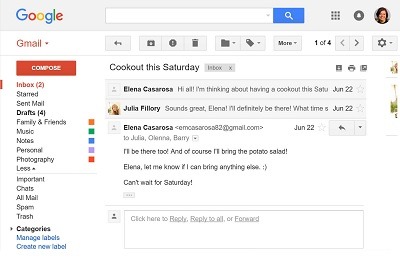
Email (electronic mail) is a widely used method of exchanging digital messages over the Internet. To use email, you typically need an email client, which is a software application that allows you to send, receive, and organize email messages. Here are the basic steps for opening an email client:
- Choose an Email Client:
- Popular email clients include Microsoft Outlook, Mozilla Thunderbird, Apple Mail, and web-based clients like Gmail, Yahoo Mail, and Outlook.com. Choose one that suits your preferences and needs.
- Install the Email Client:
- If you’re using a desktop email client like Outlook or Thunderbird, you’ll need to download and install the software on your computer. Web-based clients like Gmail can be accessed through a web browser without any installation.
- Set Up an Email Account:
- Once the email client is installed, you’ll need to set up your email account. This typically involves providing your name, email address, password, and details about the incoming and outgoing mail servers. If you’re using a web-based client, you’ll sign in with your email address and password.
- Open the Email Client:
- Launch the email client by double-clicking the application icon on your desktop or selecting it from your applications menu. If you’re using a web-based client, open a web browser and navigate to the email provider’s website.
- View Inbox:
- After opening the email client, you’ll usually be taken to your inbox automatically. The inbox is where you’ll find incoming emails.
- Read and Manage Emails:
- Click on an email to open and read it. Most email clients provide options to reply, forward, delete, or archive messages. You can also organize your emails into folders for better management.
- Compose and Send Emails:
- To compose and send an email, look for a “Compose” or “New Email” button. Enter the recipient’s email address, subject, and the body of your message. Click “Send” when you’re ready to send the email.
- Check for New Emails:
- Email clients often have a “Check for new mail” or “Refresh” button. Use this to manually update your inbox and see if you have new messages.
- Logout (if using a web-based client):
- If you’re using a web-based email client, it’s a good practice to log out when you’re done to ensure the security of your account.
Remember to keep your email account secure by using a strong password and enabling two-factor authentication if available. Additionally, be cautious about opening emails from unknown senders or clicking on suspicious links to avoid phishing and other security threats.
To get started with using an email client and managing your emails, here are the basic requirements and steps you need to follow:
- Email Account:
- You must have an active email account. This account will have a unique email address associated with it (e.g., yourname@example.com). You can create an email account through various email service providers like Gmail, Yahoo Mail, Outlook, etc.
- Email Client Software or Web-based Service:
- Choose an email client that suits your preferences. This could be desktop software like Microsoft Outlook, Mozilla Thunderbird, or Apple Mail. Alternatively, you can use a web-based email service like Gmail, Yahoo Mail, or Outlook.com.
- Installation (if using desktop software):
- If you’re using desktop email client software, you may need to download and install it on your computer. Follow the installation instructions provided by the software.
- Account Setup:
- Once you have the email client installed, you need to set up your email account within the client. This involves providing information such as your name, email address, password, and details about the incoming and outgoing mail servers. The client will guide you through this process.
- Logging In (if using a web-based service):
- If you’re using a web-based email service like Gmail or Yahoo Mail, open a web browser and navigate to the login page of your chosen email provider. Enter your email address and password to log in.
- Accessing Inbox:
- Once you’ve successfully logged in, you’ll be taken to your inbox by default. The inbox is where you receive and view your incoming emails.
- Reading Emails:
- Click on an email to open and read it. Emails typically include information such as the sender, subject, date, and the body of the message.
- Managing Emails:
- Most email clients provide options to reply, forward, delete, or archive messages. You can organize your emails into folders or labels for better management.
- Composing and Sending Emails:
- To compose and send a new email, look for a “Compose” or “New Email” button. Enter the recipient’s email address, subject, and the body of your message. Click “Send” to send the email.
- Checking for New Emails:
- Email clients often have a “Check for new mail” or “Refresh” button. Use this to manually update your inbox and see if you have new messages.
- Logging Out (if using a web-based service):
- If you’re using a web-based email service, log out when you’re done to ensure the security of your account.
By following these basic steps, you’ll be able to open your email client, access your inbox, and start managing your emails effectively.
The basics of email and opening an email client are relevant to anyone who uses email for communication, whether for personal or professional purposes. Here are some groups of people for whom understanding the basics of email and using an email client is particularly important:
- Individual Users:
- Everyday users who want to communicate with friends, family, or colleagues. Understanding how to open an email client, read and send emails is crucial for personal communication.
- Business Professionals:
- Professionals in various fields who use email for work-related communication. This includes opening and managing emails, sending business correspondence, and staying organized with an email client.
- Students:
- Students who use email for communication with teachers, classmates, and for various academic purposes. Opening an email client and managing emails is essential for staying updated on course information and assignments.
- Job Seekers:
- Individuals who are job hunting often use email for job applications, communication with potential employers, and responding to job offers. Knowing how to use an email client is important for professional communication during the job search.
- Entrepreneurs and Small Business Owners:
- Business owners and entrepreneurs use email for communication with clients, partners, and suppliers. Managing emails efficiently is crucial for the smooth operation of a business.
- Remote Workers:
- With the rise of remote work, many individuals rely on email for communication with their remote teams and colleagues. Understanding how to use an email client is fundamental for remote collaboration.
- Educators:
- Teachers and educators use email to communicate with students, parents, and colleagues. Opening an email client and managing emails is essential for effective communication in an educational setting.
- Nonprofit Organizations:
- Employees and volunteers in nonprofit organizations often use email to coordinate events, communicate with donors, and manage outreach efforts. Opening an email client is essential for effective nonprofit communication.
- Tech Users and Seniors:
- Individuals from all age groups who use technology in their daily lives. Basic email skills are important for staying connected with the digital world, and many seniors find email a useful tool for communication with friends and family.
In summary, the basics of email and opening an email client are essential skills for a broad range of users, encompassing personal, professional, educational, and organizational contexts. Email is a ubiquitous communication tool, and understanding its fundamental features is beneficial for effective and efficient communication.
The basics of email and opening an email client are required in various situations and contexts. Here are some common scenarios where this knowledge is essential:
- Professional Communication:
- In the professional world, email is a standard mode of communication. Opening an email client is necessary for professionals to read and respond to work-related messages, collaborate with colleagues, and communicate with clients and stakeholders.
- Job Applications:
- When applying for jobs, candidates often use email to submit resumes, cover letters, and communicate with potential employers. Understanding how to use an email client is crucial during the job application process.
- Education and Academia:
- Students and educators rely on email for communication related to coursework, assignments, announcements, and collaboration. Opening an email client is essential for staying informed and engaged in academic activities.
- Remote Work:
- With the increasing trend of remote work, individuals need to use email to stay connected with their remote teams. Knowing how to open and use an email client is important for effective remote communication and collaboration.
- Personal Communication:
- For personal use, people often use email to communicate with friends, family, and acquaintances. Opening an email client is necessary for staying in touch, sharing information, and managing personal correspondence.
- Business Operations:
- Entrepreneurs, small business owners, and employees across various industries use email for business operations. Opening an email client is crucial for managing business communications, customer inquiries, and partnerships.
- Networking:
- Professionals often use email for networking purposes, such as connecting with industry peers, attending events, and sharing information. Knowledge of email basics is important for effective networking.
- Organizational Communication:
- Nonprofit organizations, community groups, and other entities use email for organizational communication. Opening an email client is necessary for managing internal communications and coordinating activities.
- Information Dissemination:
- Emails are commonly used for disseminating information, announcements, and updates. Understanding how to open an email client is essential for receiving and staying informed about important news and events.
- E-commerce and Online Services:
- Many online services, e-commerce platforms, and subscription-based services rely on email for account verification, transaction receipts, and communication with users. Users need to open their email clients to access such communications.
In summary, the basics of email and opening an email client are required in a wide range of personal, educational, professional, and organizational contexts. As email remains a fundamental tool for communication, having these skills is crucial for effective and efficient interaction in various aspects of life.
The basics of email and opening an email client are required in numerous situations and environments. Here are some specific instances where this knowledge is essential:
- Workplace:
- In virtually all professional settings, employees use email for internal and external communication. Opening an email client is necessary to access work-related messages, communicate with colleagues, and manage tasks and projects.
- Job Search:
- When seeking employment, individuals use email to submit job applications, correspond with potential employers, and receive updates about job opportunities. Opening an email client is crucial during the job search process.
- Education:
- In educational institutions, students and educators use email for communication regarding classes, assignments, announcements, and collaboration. Opening an email client is essential for staying connected with the academic community.
- Remote Work:
- With the rise of remote work, employees need to use email to stay connected with their teams, receive updates, and collaborate on projects. Opening an email client is a fundamental skill for remote workers.
- Networking and Professional Development:
- Professionals use email for networking, connecting with industry peers, and participating in professional development opportunities. Opening an email client is necessary for effective communication in these contexts.
- Personal Communication:
- In personal life, individuals use email to communicate with friends, family, and acquaintances. Opening an email client is required for personal correspondence, sharing information, and staying connected.
- Organizational Communication:
- Nonprofit organizations, community groups, and clubs often use email for internal and external communication. Opening an email client is essential for staying informed about organizational activities and updates.
- Financial Transactions:
- Many online banking and financial services communicate with users through email for transaction confirmations, statements, and security alerts. Users need to open their email clients to access such important financial information.
- Customer Service:
- When dealing with customer service for various products and services, companies often communicate with customers via email. Opening an email client is necessary to access and respond to customer service inquiries and updates.
- Event Participation:
- Registration confirmations, event updates, and communication related to conferences, webinars, and workshops are often sent via email. Opening an email client is crucial for participants to access relevant information.
- Subscription Services:
- Users receive notifications, updates, and newsletters from subscription-based services via email. Opening an email client is required to access and manage communications from these services.
In summary, the basics of email and opening an email client are required in various professional, educational, personal, and transactional contexts. As email remains a ubiquitous communication tool, having these skills is essential for effective participation in many aspects of modern life.
Understanding the basics of email and opening an email client is essential for effective communication in both personal and professional settings. Here’s a step-by-step guide on how to do it:
Basics of Email:
- Create an Email Account:
- If you don’t already have an email account, sign up for one with a reputable email service provider such as Gmail, Outlook, Yahoo Mail, or others. Follow the provider’s instructions to create your account.
- Remember Your Credentials:
- Keep track of your email address and password. These are essential for logging in and accessing your emails.
- Navigate to the Email Provider’s Website:
- If you’re using a web-based email service (e.g., Gmail, Yahoo Mail), open a web browser and go to the official website of your email provider.
- Log In:
- Enter your email address and password to log in to your email account.
- Explore the Email Interface:
- Familiarize yourself with the email interface. Most email services have tabs for Inbox, Sent, Drafts, and more. The Inbox is where you’ll find incoming emails.
- Compose and Send an Email:
- Click on the “Compose” or “New Email” button to create a new email. Enter the recipient’s email address, subject, and the body of your message. Click “Send” when you’re ready.
- Check Spam or Junk Folder:
- Occasionally, legitimate emails may end up in the spam or junk folder. Check these folders regularly to avoid missing important messages.
Opening an Email Client:
If you are using a desktop email client (e.g., Microsoft Outlook, Mozilla Thunderbird) instead of a web-based service, follow these steps:
- Install the Email Client:
- Download and install the email client software on your computer. Follow the installation instructions provided by the client.
- Open the Email Client:
- Double-click on the email client icon on your desktop or open it from your applications menu to launch the software.
- Set Up Your Email Account:
- During the first launch, the email client will prompt you to set up your email account. Enter your email address, password, and other relevant details. The client will guide you through the process.
- Access Your Inbox:
- Once your email account is set up, the email client will usually open to your inbox automatically. Here, you can view and manage your emails.
- Read and Respond to Emails:
- Click on an email to open and read it. Use the available options to reply, forward, or delete emails. You can also organize emails into folders for better management.
- Compose and Send Emails:
- To send a new email, look for a “New Email” or “Compose” button. Enter the recipient’s email address, subject, and message, then click “Send.”
- Check for New Emails:
- Most email clients have a “Check for new mail” or similar option. Use this to refresh your inbox and check for new messages.
Remember to keep your email account secure by using a strong password, enabling two-factor authentication if available, and being cautious about phishing attempts. Regularly update your email client software to ensure you have the latest security features and improvements.
Title: Streamlining Communication: A Case Study on the Basics of Email and Opening an Email Client
Introduction: In today’s digital age, effective communication is pivotal in personal, professional, and educational settings. This case study explores the implementation of basic email skills, specifically focusing on opening an email client, to enhance communication and productivity within a fictional company named TechSolutions.
Challenge: TechSolutions, a growing tech company, faced challenges in internal communication due to the lack of a standardized email protocol. Employees were using various email providers and clients, resulting in inefficiencies and potential security risks.
Objective: The objective was to establish a uniform approach to email communication by ensuring all employees had a basic understanding of email fundamentals and could proficiently open and use an email client.
Implementation:
- Training Program:
- Conducted a series of workshops to educate employees on the basics of email. This included creating email accounts, understanding email etiquette, and recognizing potential security threats.
- Email Client Standardization:
- Selected a standardized email client (Microsoft Outlook) to be used across the organization. Provided step-by-step guides for installing and configuring the client on various devices.
- Account Setup Assistance:
- Set up a support team to assist employees in creating and configuring their email accounts within the chosen email client. This team provided one-on-one assistance to ensure a smooth transition.
- Simulation Exercises:
- Introduced simulation exercises to allow employees to practice opening the email client, reading, and responding to emails. This practical approach helped reinforce the learning and build confidence.
- Security Awareness Training:
- Incorporated sessions on email security best practices, such as recognizing phishing attempts and safeguarding sensitive information. Employees were educated on the importance of strong passwords and two-factor authentication.
Results:
- Improved Communication:
- Standardizing the email client enhanced communication efficiency. Employees could easily share information, collaborate on projects, and receive timely updates.
- Increased Productivity:
- The streamlined email process led to a reduction in time spent searching for emails or troubleshooting email-related issues. This contributed to increased overall productivity within the organization.
- Enhanced Security:
- Employees became more vigilant in identifying potential security threats. The implementation of secure practices, such as regular password changes and awareness of phishing techniques, significantly reduced the risk of security breaches.
- Positive Feedback:
- Employees provided positive feedback on the training program, emphasizing increased confidence in using email for both internal and external communication.
- Cost Savings:
- Standardizing the email client and improving communication led to indirect cost savings by reducing the need for additional communication tools and minimizing the time spent on inefficient communication methods.
Conclusion: The case study demonstrates the positive impact of implementing the basics of email and opening an email client within an organizational context. By providing foundational skills and standardizing email practices, TechSolutions achieved enhanced communication, increased productivity, and improved security awareness among its employees. The success of this initiative underscores the importance of investing in basic digital communication skills for the modern workplace.
Title: Unlocking Efficiency: A White Paper on the Basics of Email – Opening an Email Client
Abstract:
This white paper delves into the fundamental aspects of email communication, specifically focusing on the essential skills required to open an email client. As email remains a ubiquitous tool for personal and professional communication, understanding the basics becomes imperative. This paper explores the significance of mastering email fundamentals and the impact it has on individual users, businesses, and organizations.
1. Introduction:
Email has evolved into a cornerstone of modern communication. Its efficiency, versatility, and global accessibility make it an indispensable tool. Opening an email client, the gateway to this digital communication world, is the first step towards harnessing the power of email for streamlined and effective communication.
2. Importance of Email Basics:
Understanding the basics of email is crucial for several reasons:
- Professional Communication: Email is the primary means of professional correspondence, from job applications to daily work communication.
- Efficient Collaboration: Opening an email client facilitates efficient collaboration, especially in remote work scenarios, enabling real-time communication and information exchange.
- Information Management: Mastery of email basics allows for effective organization and management of information, ensuring that critical messages are not overlooked.
3. Basics of Email:
- Creating an Email Account: A foundational step, creating an email account is necessary for accessing an email client. The process involves choosing a reliable email service provider and following account creation steps.
- Email Etiquette: Understanding the etiquettes of email communication is essential for professional and courteous interactions. This includes appropriate salutations, concise messaging, and prompt responses.
- Security Awareness: Recognizing potential security threats, such as phishing attempts, ensures the integrity and confidentiality of personal and professional information.
4. Opening an Email Client:
- Choosing an Email Client: Users can select from a range of email clients, such as web-based (Gmail, Outlook.com) or desktop applications (Outlook, Thunderbird). The choice depends on preferences, features, and organizational requirements.
- Installation and Configuration: For desktop email clients, installation and configuration are crucial steps. Clear instructions and step-by-step guides should be provided to ensure a seamless setup process.
- Logging In: Once the email client is installed, users log in with their credentials to access their email account. This step is the gateway to the inbox, where all incoming emails are stored.
5. Training Programs for Email Basics:
Implementing structured training programs is essential for ensuring that users, whether individuals or employees, are proficient in email basics. These programs can include:
- Workshops and Webinars: Interactive sessions to educate users on the importance of email basics and guide them through practical scenarios.
- Simulations: Hands-on simulations allowing users to practice opening an email client, reading, and responding to emails.
- Security Modules: Dedicated modules to raise awareness about email security and equip users with the knowledge to identify and mitigate security risks.
6. Case Studies:
Highlighting case studies that demonstrate the positive impact of mastering email basics. These studies can include improved communication, increased productivity, and enhanced security measures within organizations that prioritize email proficiency.
7. Conclusion:
Mastering the basics of email, particularly opening an email client, is a foundational skill in the digital era. Individuals and organizations that invest in comprehensive training programs and embrace the importance of email fundamentals will undoubtedly unlock efficiency, foster better communication, and navigate the complexities of the modern communication landscape with ease.