
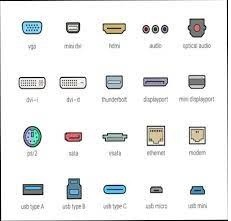
I/O Ports
I/O ports, or Input/Output ports, are interfaces on a computer or electronic device used to connect with external devices or peripherals. They allow data to be transferred into and out of the device, enabling communication, data exchange, and interaction with various hardware components. I/O ports come in various forms, each serving a specific purpose.
Here are some common types of I/O ports you might encounter on a computer or electronic device:
- USB Ports: Universal Serial Bus (USB) ports are used for connecting a wide range of peripherals, such as keyboards, mice, printers, external hard drives, cameras, and more. USB ports are found on almost all modern computers and devices and offer different versions (USB 2.0, USB 3.0, USB-C) with varying data transfer speeds.
- Ethernet Port: This port is used to connect a computer to a wired local network or the internet. It’s commonly used to establish a high-speed internet connection using an Ethernet cable.
- HDMI Port: High-Definition Multimedia Interface (HDMI) ports are used to connect devices like computers, gaming consoles, and DVD players to external displays, such as monitors, projectors, or televisions. HDMI supports both video and audio transmission.
- Audio Ports: Audio ports are used to connect headphones, speakers, microphones, and other audio devices. They typically include headphone jacks, microphone jacks, and sometimes combined audio/microphone jacks.
- Display Ports: Display ports (such as DisplayPort and Mini DisplayPort) are used to connect computers to high-resolution monitors, offering advanced display capabilities like higher resolutions and refresh rates.
- VGA Port: Video Graphics Array (VGA) ports are older analog ports that used to be common for connecting computers to monitors. They are gradually being replaced by digital options like HDMI and DisplayPort.
- Thunderbolt Ports: Thunderbolt ports are high-speed ports that support data transfer, video output, and power delivery. They are often found on Mac computers and some high-end Windows machines.
- Serial and Parallel Ports: These older ports were used for connecting peripherals like printers, scanners, and external modems. They have become less common as modern interfaces like USB have taken over.
- Card Slots: Some computers have slots for expansion cards, such as graphics cards, sound cards, and network interface cards.
- SD Card Slot: Secure Digital (SD) card slots are used to read and write data from and to SD memory cards commonly used in digital cameras and other devices.
The types and availability of I/O ports can vary depending on the device’s purpose and design. It’s important to have the right ports for your intended usage, as they determine the compatibility of the device with various peripherals and accessories.
What is required I/O Ports
The “required” I/O ports for a computer or electronic device can vary widely depending on its intended use, configuration, and the peripherals you plan to connect. The term “required I/O ports” refers to the essential input/output interfaces necessary for the device to function according to its intended purpose and to connect with necessary peripherals. Here’s a general overview of the required I/O ports for different types of devices:
Basic Desktop Computer:
- USB Ports: These are typically required for connecting peripherals like keyboards, mice, printers, external storage devices, and more.
- Ethernet Port: Often necessary for a wired internet connection and local network communication.
- Audio Ports: Usually, a headphone/microphone combo jack is required for audio input and output.
- Video Output Port: At least one video output port, such as HDMI, DisplayPort, or VGA, is required to connect a monitor or display.
Laptop Computer:
- USB Ports: Similar to desktop computers, USB ports are required for various peripherals.
- Audio Ports: A headphone/microphone combo jack is essential for audio functionality.
- Video Output Port: Laptops usually have a built-in display, but an additional video output port may be required for connecting external monitors or projectors.
- Ethernet Port: While not as common as on desktops, an Ethernet port may be necessary for wired networking.
Gaming Computer:
- USB Ports: A sufficient number of USB ports are needed for gaming peripherals like controllers, gaming mice, and keyboards.
- Audio Ports: Quality audio ports, including microphone and headphone jacks, are important for gaming headsets and communication.
- Dedicated Graphics Ports: High-performance gaming computers may require multiple video output ports for multiple displays or VR setups.
- Ethernet Port: Gaming computers often benefit from a fast and stable wired internet connection.
Multimedia Production Computer:
- USB Ports: Multiple USB ports are needed for connecting external hard drives, audio interfaces, MIDI controllers, and other production equipment.
- Audio Ports: High-quality audio inputs and outputs are crucial for music production and sound editing.
- Video Output Ports: High-resolution video output ports for connecting professional monitors and displays used in video editing or graphic design.
- Thunderbolt or Expansion Card Slots: For connecting high-speed external storage and other peripherals.
Home Entertainment System:
- HDMI Ports: Multiple HDMI ports for connecting cable/satellite boxes, gaming consoles, media players, and audiovisual receivers.
- Audio Ports: A variety of audio output options for connecting speakers, sound bars, and home theater systems.
- USB Ports: For firmware updates and connecting certain peripherals like keyboards or storage devices.
It’s important to note that the required I/O ports can vary based on individual preferences, specific use cases, and advancements in technology. Additionally, wireless technologies like Bluetooth and Wi-Fi are becoming more prevalent, reducing the reliance on physical I/O ports for certain peripherals and connections.
When determining the required I/O ports for a device, consider the devices you intend to connect, the tasks you plan to perform, and potential future needs.
Who is required I/O Ports
I’m sorry, but “Who is required I/O Ports” doesn’t make sense in the context of a person, entity, or concept. I/O ports (Input/Output ports) are physical interfaces on computers and electronic devices used for connecting peripherals and external devices. They facilitate data exchange and communication between the device and external components.
If you have a different question or topic you’d like to inquire about, please provide more information or clarify your query, and I’d be happy to assist you.
When is required I/O Ports
The need for Input/Output (I/O) ports is a fundamental aspect of the design and functionality of electronic devices, such as computers, smartphones, and other gadgets. These ports are required whenever a device needs to interact with external components or peripherals, which is a common scenario for most electronic devices. Here are some situations when I/O ports are required:
- Connecting Peripherals: I/O ports are necessary to connect peripherals like keyboards, mice, printers, external hard drives, and USB flash drives to a computer.
- Audio Input and Output: I/O ports are used for connecting headphones, microphones, speakers, and other audio devices to a computer or smartphone.
- Video Output: To connect a device to an external display, such as a monitor, TV, or projector, I/O ports like HDMI, DisplayPort, or VGA are required.
- Networking: Ethernet ports or wireless network adapters (which connect via I/O interfaces) are needed to establish a network connection.
- Charging and Power: Many devices have I/O ports for charging their batteries, such as USB-C ports on smartphones and laptops.
- Data Transfer: For data transfer between devices, I/O ports are required. This includes transferring photos from a camera to a computer, data from a smartphone to a computer, etc.
- Audio/Video Recording: Cameras and audio recording equipment use I/O ports for connecting external microphones, headphones, and other accessories.
- Expansions and Upgrades: Devices like desktop computers often have expansion slots for adding additional functionality, such as graphics cards, sound cards, and network cards. These slots use I/O connectors.
- Gaming: Gaming consoles and gaming PCs require I/O ports for connecting controllers, keyboards, mice, and other gaming accessories.
In essence, I/O ports are an integral part of nearly all electronic devices because they enable these devices to communicate and interact with the external world, whether it’s for input (receiving data) or output (sending data). The specific types of I/O ports required depend on the device’s purpose and the peripherals or external components it needs to work with.
Where is required I/O Ports
Required Input/Output (I/O) ports are physically located on the exterior of electronic devices, such as computers, smartphones, and various other gadgets. The precise location of I/O ports can vary from device to device, and they are usually strategically placed for easy accessibility and efficient use. Here are some common locations where you might find required I/O ports on different devices:
Laptop/Notebook Computers:
- USB ports: Usually located on the sides of the laptop.
- Audio ports (headphone/microphone): Often found on the sides or front of the laptop.
- HDMI or DisplayPort: Typically located on the sides.
- Ethernet port: Sometimes present on the sides or back.
- Power port: Located on the back or sides for charging.
Desktop Computers:
- USB ports: Found on the front and back of the computer case.
- Audio ports: Often on the front or back of the case.
- Video output ports (HDMI, DisplayPort, VGA): On the back of the case.
- Ethernet port: On the back of the case.
- Expansion card slots: Inside the case, usually at the back.
Smartphones:
- Charging port (USB-C, Lightning, micro USB): Located at the bottom of the device.
- Audio jack: Present on some models, usually at the bottom or top.
- SIM card tray: On the side of the phone.
- Other proprietary ports: Depending on the manufacturer and model, additional ports may be located on the sides or bottom.
Tablets:
- Charging port: Similar to smartphones, often at the bottom of the device.
- Audio jack: If available, typically at the top or bottom.
- Expansion ports (if any): Varies by model, may include microSD card slots or proprietary connectors.
Monitors:
- Video input ports (HDMI, DisplayPort, VGA, etc.): On the back or side of the monitor.
- USB hub ports (if equipped): Usually on the side or bottom.
TVs:
- Video input ports: Typically on the back or side of the TV, including HDMI, composite, component, etc.
- Audio output ports: Usually located on the back.
Gaming Consoles:
- USB ports: Often on the front and/or back of the console.
- Video output ports (HDMI, etc.): On the back of the console.
- Audio ports: For headsets or external speakers, may be on the front or back.
Remember, the specific layout and placement of I/O ports can vary between manufacturers, models, and device generations. When looking for I/O ports on a device, check the sides, front, and back for any visible openings or connectors. Additionally, the user manuals or documentation for your specific device should provide detailed information about the location and functionality of the I/O ports.
How is required I/O Ports
The “how” of required Input/ Output (I/O) ports refers to their functionality, purpose, and usage in electronic devices. I/O ports are essential interfaces that enable communication between a device and external components, peripherals, and networks. Here’s how required I/O ports work and how they are used:
- Communication Pathway: I/O ports serve as pathways for data to enter and exit a device. They allow data to flow between the device’s internal components and external devices, facilitating interaction and information exchange.
- Data Input: When you connect an external device or peripheral to an I/O port, data can be input into the device. For example, when you connect a keyboard to a computer’s USB port, the keystrokes you input are transmitted through the USB port to the computer’s processing unit.
- Data Output: Conversely, data can also be output through I/O ports. For instance, when you connect your computer to a monitor using an HDMI port, the computer’s video signal is transmitted through the port to the monitor, resulting in the display of images and content.
- Peripheral Connection: I/O ports enable the connection of peripherals such as keyboards, mice, printers, cameras, external storage devices, headphones, and more. Each type of peripheral usually requires a specific type of port designed to accommodate its data and power requirements.
- Networking and Internet: Ethernet ports and wireless network adapters provide I/O interfaces for connecting to local networks and the internet. These ports facilitate data exchange between the device and networked resources.
- Charging and Power: Many devices charge through dedicated I/O ports, such as USB-C or Lightning ports on smartphones and laptops. These ports not only transfer data but also deliver power to charge the device’s battery.
- Audio and Visual Connections: I/O ports like audio jacks and video output ports enable the device to interact with audiovisual components. For instance, audio jacks connect headphones, speakers, and microphones, while video output ports connect displays and projectors.
- Peripheral Detection and Configuration: Modern devices often have plug-and-play capability, meaning that when you connect a peripheral to an I/O port, the device detects it automatically and configures it for use without requiring extensive manual setup.
- Expansions and Upgrades: I/O ports can also facilitate device expansion and upgrades. For example, expansion card slots in desktop computers enable the addition of new components like graphics cards or network cards to enhance performance or capabilities.
- Flexibility and Compatibility: I/O ports provide flexibility and compatibility, allowing various devices to connect and communicate regardless of their specific manufacturers or models.
In summary, required I/O ports play a crucial role in enabling electronic devices to communicate with the outside world, enhance their capabilities, and connect to a wide range of peripherals and networks. The design and availability of these ports are tailored to the specific use cases and functionality of each device.
Case study on I/O Ports
Case Study: I/O Port Integration in a Smart Home Hub
Client: Smart Home Solutions Inc.
Challenge: Smart Home Solutions Inc. is a company that specializes in creating advanced smart home hubs that centralize and manage various smart devices within a home. They faced a challenge in designing a new smart home hub that seamlessly integrated a wide range of input/output (I/O) ports to accommodate the diverse array of smart devices commonly found in modern households.
Solution:
1. Product Design and Planning: Smart Home Solutions conducted an in-depth analysis of the current smart home ecosystem to identify the most commonly used smart devices and their corresponding I/O requirements. They planned to design a hub that could handle everything from security cameras and thermostats to smart lights and entertainment systems.
2. Port Variety and Customization: To address the diverse needs of users, the design team incorporated a variety of I/O ports into the smart home hub. This included USB ports for charging devices, Ethernet ports for reliable internet connectivity, HDMI ports for connecting to TVs and monitors, audio jacks for speakers, and even expansion slots for future upgrades.
3. Intelligent Port Management: Recognizing that users might have varying levels of technical expertise, the smart home hub featured intelligent port management. This meant that the hub could automatically detect and configure connected devices, making the setup process user-friendly and intuitive.
4. Wireless Integration: In addition to physical I/O ports, the hub also supported wireless communication protocols like Wi-Fi, Bluetooth, and Zig bee. This allowed users to connect their smart devices wirelessly when applicable, reducing cable clutter and providing more flexibility.
5. User Experience Focus: The user interface was designed to help users manage and control all connected devices from a central hub. The hub’s software provided a clear overview of all connected devices, their status, and the option to customize how they interacted with each other.
Results:
Smart Home Solutions successfully developed a highly versatile and user-friendly smart home hub that integrated a variety of I/O ports to meet the needs of diverse smart devices:
- Users were able to seamlessly connect security cameras, smart thermostats, smart lights, speakers, TVs, and other devices to the hub.
- The hub’s intelligent port management simplified the setup process, making it accessible to both tech-savvy users and those new to smart home technology.
- The incorporation of wireless communication protocols added convenience and flexibility to the user experience.
- The hub’s success in integrating I/O ports contributed to Smart Home Solutions’ reputation as a leader in smart home technology.
This case study demonstrates how the thoughtful integration of I/O ports can enhance the functionality and user experience of a product, especially in the context of a smart home hub where compatibility and versatility are paramount.
White paper on I/O Ports
Certainly, here’s an outline for a white paper on Input /Output (I/O) ports that you can use as a starting point:
Title: The Role and Evolution of Input/Output Ports in Modern Computing
Abstract: This white paper delves into the significance, functionality, and evolution of I/O ports in modern computing systems. It explores the various types of I/O ports, their importance in facilitating data exchange between devices and peripherals, and their adaptation to technological advancements.
Table of Contents:
- Introduction
- Definition of I/O ports and their importance.
- Overview of the role of I/O ports in connecting devices and peripherals.
- Types of I/O Ports
- USB ports and their versions (USB 2.0, USB 3.0, USB-C).
- Audio ports (headphone, microphone).
- Video output ports (HDMI, DisplayPort, VGA).
- Ethernet ports.
- Expansion card slots.
- Specialized ports (Thunderbolt, Serial, Parallel).
- Historical Perspective
- Evolution of I/O port technology from early computers to modern devices.
- Shift from proprietary connectors to standardized ports.
- Importance of I/O Ports
- Enabling communication between devices and peripherals.
- Facilitating data transfer and synchronization.
- Supporting various functionalities (data, power, audio, video).
- Adaptation to Changing Needs
- Incorporation of wireless communication (Bluetooth, Wi-Fi, NFC).
- Integration of USB-C as a versatile and reversible connector.
- Multi-functionality of ports (charging, data transfer, display).
- Design Considerations
- Placement and accessibility of ports on devices.
- Balancing user convenience and device aesthetics.
- Port configurations for different device categories (laptops, smartphones, desktops).
- Challenges and Solutions
- Compatibility issues between old and new devices.
- Addressing the need for faster data transfer speeds.
- Ensuring security in data transfer.
- Future of I/O Ports
- Potential impact of wireless technologies on I/O port usage.
- Continued evolution to support higher resolutions and data rates.
- Role of I/O ports in emerging technologies (augmented reality, virtual reality).
- Conclusion
- Recap of the critical role of I/O ports in modern computing.
- Acknowledgment of their role in enhancing user experience and device capabilities.
- Anticipation of ongoing evolution to meet changing technological demands.
References: List of sources and references used to gather information for the white paper.
This outline provides a comprehensive structure for a white paper on I/O ports, covering their types, historical context, importance, challenges, and future trends. You can expand each section with detailed information, examples, statistics, and insights to create a thorough and informative white paper.