
Basics of E-mail.opening E-mail client
Basics of Email and Opening an Email Client:
1. What is Email? Email, short for “electronic mail,” is a digital communication method that allows users to exchange messages and files over the internet. It is one of the most widely used and convenient means of communication for both personal and professional purposes.
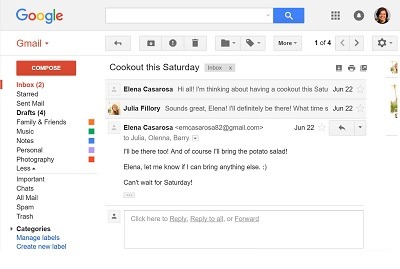
2. Email Address: An email address is a unique identifier used to send and receive emails. It typically consists of a username (before the “@” symbol) and a domain name (after the “@” symbol), separated by an “@” symbol. For example, “john.doe@example.com.”
3. Email Client: An email client is a software application or program used to access, manage, and send emails. Common email clients include web-based services like Gmail, Outlook, and Yahoo Mail, as well as desktop applications like Microsoft Outlook and Mozilla Thunderbird.
4. Opening an Email Client: Here’s how you can open an email client on your computer or device:
a. Web-Based Email Clients:
- Open your preferred web browser (e.g., Google Chrome, Mozilla Firefox, Safari).
- In the address bar, type the URL of the email service you use (e.g., www.gmail.com, www.outlook.com).
- Press “Enter” to load the email service’s login page.
- Enter your email address and password in the provided fields.
- Click on the “Sign In” or “Log In” button to access your email account.
b. Desktop Email Clients:
- If you’re using a desktop email client (e.g., Microsoft Outlook, Mozilla Thunderbird), locate and click on its icon on your computer’s desktop or in the applications folder.
- The email client will launch, and you’ll be prompted to enter your email address and password to set up your email account.
- Follow the on-screen instructions to configure your email account. This usually involves providing your email address and password and letting the email client automatically configure the account settings.
- Once your email account is set up, you’ll be able to access your emails, send new messages, and manage your mailbox directly from the desktop application.
5. Composing and Sending Emails: Regardless of whether you’re using a web-based or desktop email client, once you’ve opened your email account, you can compose and send emails by clicking on the “Compose” or “New” button. In the email composition window, you can enter the recipient’s email address, subject, compose your message, and attach files if needed. After composing your email, click on the “Send” button to deliver it to the recipient.
Remember to log out of your email account or lock your computer when you’re finished using it to ensure your privacy and security. Also, keep your email account credentials (username and password) secure to prevent unauthorized access to your emails.
What is required Basics of E-mail.Opening E-mail client
Basics of Email and Opening an Email Client:
1. What is Email? Email, short for “electronic mail,” is a digital communication method that allows users to exchange messages and files over the internet. It is one of the most widely used and convenient means of communication for both personal and professional purposes.
2. Email Address: An email address is a unique identifier used to send and receive emails. It typically consists of a username (before the “@” symbol) and a domain name (after the “@” symbol), separated by an “@” symbol. For example, “john.doe@example.com.”
3. Email Client: An email client is a software application or program used to access, manage, and send emails. Common email clients include web-based services like Gmail, Outlook, and Yahoo Mail, as well as desktop applications like Microsoft Outlook and Mozilla Thunderbird.
4. Opening an Email Client: To open an email client on your computer or device:
a. Web-Based Email Clients:
- Open your preferred web browser (e.g., Google Chrome, Mozilla Firefox, Safari).
- In the address bar, type the URL of the email service you use (e.g., www.gmail.com, www.outlook.com).
- Press “Enter” to load the email service’s login page.
- Enter your email address and password in the provided fields.
- Click on the “Sign In” or “Log In” button to access your email account.
b. Desktop Email Clients:
- If you’re using a desktop email client (e.g., Microsoft Outlook, Mozilla Thunderbird), locate and click on its icon on your computer’s desktop or in the applications folder.
- The email client will launch, and you’ll be prompted to enter your email address and password to set up your email account.
- Follow the on-screen instructions to configure your email account. This usually involves providing your email address and password and letting the email client automatically configure the account settings.
- Once your email account is set up, you’ll be able to access your emails, send new messages, and manage your mailbox directly from the desktop application.
5. Composing and Sending Emails: Regardless of whether you’re using a web-based or desktop email client, once you’ve opened your email account, you can compose and send emails by clicking on the “Compose” or “New” button. In the email composition window, you can enter the recipient’s email address, subject, compose your message, and attach files if needed. After composing your email, click on the “Send” button to deliver it to the recipient.
6. Email Management: An email client allows you to organize your emails using folders or labels, mark emails as read or unread, archive or delete messages, and search for specific emails. Familiarize yourself with the various features and tools your email client offers for efficient email management.
7. Email Security: Always be cautious about opening email attachments and clicking on links from unknown or suspicious sources. Email clients often have built-in security features like spam filters and phishing detection to protect you from potentially harmful emails.
Remember to log out of your email account or lock your computer when you’re finished using it to ensure your privacy and security. Also, keep your email account credentials (username and password) secure to prevent unauthorized access to your emails.
Who is required Basics of E-MAIL.Opening E-mail client
The term “required basics” can be interpreted in different ways depending on the context. If you’re referring to individuals who must have a basic understanding of opening an email client, it would generally include anyone who uses email for communication, whether for personal or professional purposes. Here are some examples of people who might be considered to have a required understanding of opening an email client:
- General Users: Everyday users who send and receive emails for personal communication, such as staying in touch with friends and family.
- Professionals: Employees in various industries who use email as a primary means of communication with colleagues, clients, and customers.
- Students: Students who use email to communicate with teachers, classmates, or educational institutions.
- Business Owners: Entrepreneurs and business owners who rely on email for customer inquiries, marketing campaigns, and general business communication.
- Remote Workers: People working remotely or from home who use email for collaboration with team members and supervisors.
- Freelancers: Freelancers and independent contractors who use email to interact with clients and potential employers.
- Job Seekers: Individuals using email to send job applications and communicate with potential employers.
Essentially, anyone who actively uses email as a mode of communication or as part of their daily routine should have a basic understanding of opening an email client, accessing their inbox, composing and sending emails, and managing their mailbox. Email has become an essential tool in modern communication, and having these basic skills is important for effective and efficient communication in various personal and professional contexts.
When is required Basics of E-mail .Opening E-mail client
The required basics of opening an email client are essential for individuals who need to use email as a means of communication in their personal or professional lives. Here are some common scenarios where knowing how to open an email client is necessary:
- Communication at Work: Many jobs and professions require employees to use email for communication with colleagues, clients, or customers. Having the basic knowledge of how to open an email client is crucial for sending and receiving work-related emails.
- Academic Purposes: Students often need to use email to communicate with teachers, professors, or classmates for academic purposes. Knowing how to access their email client allows them to stay updated with important announcements and class-related information.
- Personal Communication: In today’s digital age, email is widely used for personal communication with friends and family. Understanding how to open an email client enables individuals to stay connected and share information with loved ones.
- Job Applications: When applying for jobs, candidates often use email to send their resumes and cover letters to potential employers. Knowing how to open an email client is crucial for submitting job applications.
- Remote Work or Freelancing: Remote workers and freelancers heavily rely on email to communicate with clients, submit project deliverables, and manage their work-related correspondence.
- Online Services and Accounts: Many online services and platforms use email for user authentication, verification, and communication. Understanding how to open an email client allows users to access and manage their online accounts effectively.
- Receiving Notifications and Updates: Email is frequently used to deliver notifications, updates, and newsletters from various sources, such as social media, subscriptions, and online purchases.
In essence, the required basics of opening an email client are essential for anyone who needs to use email for communication, whether it’s in their professional or personal life. Proficiency in accessing an email client, composing emails, managing the inbox, and understanding basic email features is a fundamental skill in today’s interconnected world.
Where is required Basics of E-mail.Opening e-mail client
The required basics of opening an email client are needed in various settings where email communication is essential. Some of the common situations where knowing how to open an email client is required include:
- Workplaces: In professional settings, employees often need to use email for internal communication with colleagues, supervisors, and external communication with clients, customers, or vendors. Knowing how to open an email client is crucial for accessing work-related emails.
- Educational Institutions: Students, teachers, and administrative staff use email for academic communication. This includes sending and receiving important announcements, assignments, and communicating with fellow students or instructors.
- Remote Work and Freelancing: Remote workers, freelancers, and contractors rely heavily on email to communicate with clients, submit work deliverables, and handle project-related communication.
- Job Applications: When applying for jobs, candidates typically use email to send their resumes and cover letters to potential employers. Knowing how to open an email client is crucial for submitting job applications and responding to interview invitations.
- Personal Communication: In everyday life, people use email to stay in touch with friends, family members, and other acquaintances. Knowing how to access an email client is essential for personal communication.
- Online Services and Accounts: Many online services and platforms use email for user verification, account recovery, and communication. Being able to open an email client is necessary for managing online accounts and staying updated on important notifications.
- Subscriptions and Newsletters: Users often subscribe to newsletters, blogs, and online services that deliver updates and notifications via email. Knowing how to open an email client is necessary to access this information.
- Volunteer Organizations: Non-profit organizations and volunteer groups often use email as a primary means of communication among members and supporters.
- Government and Official Communication: Citizens may receive official communication from government agencies, municipalities, or other official entities through email.
In summary, the required basics of opening an email client are necessary in various personal, educational, professional, and organizational settings. With email being a fundamental mode of communication, having the ability to access an email client and manage emails is crucial for effective communication and staying informed in today’s digital world.
How is required Basics of E-mail .Opening E-mail client
The required basics of opening an email client involve a few simple steps that allow users to access their email accounts, compose and send messages, and manage their inbox. Here’s a step-by-step guide on how to open an email client:
- Choose an Email Service:
- Before opening an email client, you need to decide which email service you want to use. There are several popular email services available, such as Gmail, Outlook, Yahoo Mail, and others.
- Access the Email Client:
- For web-based email clients (e.g., Gmail, Outlook), open your preferred web browser (e.g., Google Chrome, Mozilla Firefox).
- In the address bar, type the URL of the email service you use (e.g., www.gmail.com, www.outlook.com).
- Press “Enter” to load the email service’s login page.
- Enter Your Credentials:
- On the login page, enter your email address and password in the provided fields.
- Make sure to enter the correct email address associated with your account and the corresponding password.
- Click “Sign In” or “Log In”:
- After entering your email and password, click on the “Sign In,” “Log In,” or “Login” button to access your email account.
- Email Inbox:
- Once you are logged in, you will be directed to your email inbox, where you can see a list of received emails.
- Compose and Send Emails:
- To compose a new email, look for a “Compose” or “New” button, usually located at the top or side of the interface.
- Click on the “Compose” or “New” button to open a new email composition window.
- In the composition window, enter the recipient’s email address in the “To” field, add a subject, write your message, and attach files if needed.
- After composing your email, click on the “Send” button to send it to the recipient.
- Email Management:
- Use the email client’s features to organize your emails. You can create folders, labels, or categories to sort and manage your messages efficiently.
- Mark emails as read or unread, archive or delete messages, and use search functionalities to find specific emails.
- Log Out and Security:
- After you are done using your email account, make sure to log out to ensure your account’s security, especially on shared or public devices.
- Keep your email account credentials (username and password) secure and avoid sharing them with others to protect your privacy.
These steps will help you open an email client, access your email account, and start managing your emails effectively. The process may vary slightly depending on the email service and client you are using, but the fundamental steps remain consistent across most platforms.
Case study on Basics of E-mail .Opening E-mail client
Case Study: Basics of E-mail – Opening E-mail Client
Client Profile: ABC Solutions is a small IT consulting firm that provides technology solutions to businesses. They have a team of consultants who work remotely and frequently communicate with clients and colleagues via email. The company recently implemented a new email system to streamline communication and ensure consistent access to email accounts.
Challenge: The ABC Solutions team faced challenges with the new email system, particularly in understanding the basics of opening the email client. Some team members were unfamiliar with the new interface, while others were using email for the first time. This lack of understanding led to delays in responding to client inquiries and miscommunication among team members.
Objectives: ABC Solutions had the following objectives in mind:
- Ensure all team members understand the basics of opening the email client and accessing their accounts.
- Improve email communication efficiency to respond to client inquiries promptly.
- Provide training and support to team members to enhance their email management skills.
Solution: To address the challenges and achieve the objectives, ABC Solutions implemented the following solutions:
1. Training Sessions: The company organized interactive training sessions for all team members to familiarize them with the new email system. These sessions covered the basics of opening the email client, logging in, navigating the interface, composing and sending emails, and managing the inbox.
2. Step-by-Step Guides: In addition to the training sessions, ABC Solutions provided step-by-step guides with screenshots and instructions on how to open the email client, access the inbox, and perform common email tasks. The guides were made accessible on the company’s intranet for easy reference.
3. One-on-One Support: The company’s IT support team offered one-on-one assistance to team members who needed extra help in setting up their email accounts and understanding the email client features.
4. Mock Exercises: To reinforce the learning, ABC Solutions conducted mock exercises where team members practiced composing and sending test emails to each other. This exercise helped build confidence and ensure everyone understood the process.
Results: The implementation of the solutions led to several positive outcomes:
- Improved Efficiency: Team members became proficient in opening the email client, resulting in faster response times to client inquiries and better communication within the team.
- Confidence and Competence: The training sessions and one-on-one support boosted the team’s confidence in using the new email system. They were now comfortable navigating the email client and managing their email accounts effectively.
- Streamlined Communication: With a better understanding of email basics, team members embraced email as a primary communication tool, reducing the need for phone calls or instant messaging for routine tasks.
- Time Savings: The improved efficiency in email communication saved valuable time for the team, allowing them to focus more on client projects and business development.
Conclusion: By addressing the basics of opening an email client and providing comprehensive training and support, ABC Solutions successfully improved email communication efficiency and enhanced the team’s email management skills. Understanding the fundamentals of email usage has become an essential part of their daily work routine, contributing to a more productive and collaborative work environment.
White paper on Basics of E-mail. opening E-mail client
Title: Basics of E-mail: A Comprehensive Guide to Opening and Using an E-mail Client
Abstract: This white paper aims to provide a thorough understanding of the basics of e-mail and how to open and use an e-mail client effectively. E-mail is a fundamental tool for communication in the digital age, and knowing how to access an e-mail client is essential for personal and professional use. This paper covers the key concepts of e-mail, the significance of e-mail clients, and step-by-step guidance on opening and utilizing them for effective communication.
Table of Contents:
- Introduction 1.1 Evolution of E-mail Communication 1.2 Importance of E-mail in Modern Communication
- Understanding E-mail Basics 2.1 What is E-mail? 2.2 Components of an E-mail Address 2.3 The Role of SMTP and POP/IMAP Protocols
- Introduction to E-mail Clients 3.1 Definition of E-mail Clients 3.2 Types of E-mail Clients (Web-based and Desktop) 3.3 Advantages and Disadvantages of E-mail Clients
- Web-based E-mail Clients 4.1 Examples of Popular Web-based E-mail Services 4.2 Accessing a Web-based E-mail Client 4.3 Navigating the User Interface 4.4 Composing and Sending E-mails 4.5 Managing Inbox and Folders
- Desktop E-mail Clients 5.1 Examples of Popular Desktop E-mail Applications 5.2 Installing and Setting Up a Desktop E-mail Client 5.3 Configuring E-mail Accounts 5.4 Composing, Sending, and Managing E-mails 5.5 Offline Access and Synchronization
- Security and Privacy Considerations 6.1 Password Management and Two-Factor Authentication 6.2 Understanding Phishing and Spam 6.3 Encryption and Secure E-mail Communication
- Best Practices for E-mail Usage 7.1 Organizing and Managing E-mail Folders 7.2 Efficient E-mail Search and Filtering 7.3 Handling Attachments and File Size Limitations 7.4 E-mail Etiquette and Professional Communication
- Integrating E-mail with Other Tools and Services 8.1 Calendar and Scheduling Integration 8.2 Task Management and To-Do Lists 8.3 Cloud Storage and E-mail Attachments
- E-mail on Mobile Devices 9.1 Accessing E-mail Clients on Smartphones and Tablets 9.2 Synchronization and Real-time Notifications 9.3 Managing E-mails on the Go
- Future Trends in E-mail Communication 10.1 AI and Automation in E-mail Management 10.2 Enhanced Security Features 10.3 Integration with Collaboration Tools
- Conclusion 11.1 Embracing the Fundamentals of E-mail 11.2 The Enduring Role of E-mail in Communication
In this white paper, readers will gain a comprehensive understanding of the basics of e-mail, the different types of e-mail clients available, and how to use them effectively. It serves as a valuable resource for individuals seeking to improve their e-mail management skills and optimize communication in both personal and professional settings. By following the guidelines presented in this white paper, users can harness the power of e-mail to enhance their productivity and stay connected in an ever-evolving digital landscape.