
BIOS SETUP
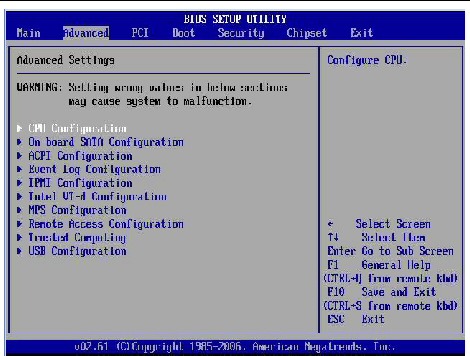
BIOS (Basic Input/Output System) Setup is a configuration utility built into the firmware of a computer’s motherboard. It provides users with the ability to change hardware settings, manage boot devices, and adjust system parameters. The BIOS Setup is typically accessed during the computer’s startup process, allowing users to customize various aspects of the system.
Here’s a step-by-step guide on how to access and navigate the BIOS Setup:
- Accessing BIOS Setup:
- Start or restart your computer. During the boot process, look for a specific key prompt displayed on the screen. Common keys to access BIOS Setup are usually “Del,” “F2,” “F12,” “Esc,” or “F10.” The key varies depending on the motherboard manufacturer, so refer to your computer’s user manual or the manufacturer’s website to find the correct key.
- Entering BIOS Setup:
- Once you identify the correct key, press it repeatedly (usually within the first few seconds of booting) until the BIOS Setup screen appears. Timing is critical, so if you miss it, restart your computer and try again.
- Navigating BIOS Setup:
- The BIOS Setup interface may look different based on the motherboard manufacturer and version. You’ll typically navigate through the options using the arrow keys on your keyboard. The keys “Enter,” “Esc,” and “Page Up/Down” might also be used to interact with the BIOS interface.
- Main Settings:
- In the “Main” or “Standard CMOS Features” section, you may find basic information about your computer, such as date, time, and installed drives.
- Advanced Settings:
- The “Advanced” section allows you to adjust advanced system settings, CPU features, and power management options.
- Boot Settings:
- The “Boot” or “Boot Order” section enables you to choose the order in which the computer boots from different devices (e.g., hard drive, USB, CD/DVD).
- Security Settings:
- In the “Security” section, you can set or modify BIOS passwords for additional security.
- Save and Exit:
- After making changes in BIOS Setup, you need to save the changes before exiting. Look for an option like “Save & Exit” or “Exit & Save Changes.” Your computer will restart with the new settings.
- Exit Without Saving:
- If you make changes in the BIOS but want to discard them, choose “Exit Without Saving” or a similar option.
What is required BIOS setup
“Required BIOS setup” refers to the configuration and adjustment of settings within the BIOS (Basic Input/Output System) of a computer. The BIOS setup is essential for proper system functioning and customization of hardware and system parameters. Here are some of the key aspects that may require configuration in the BIOS setup:
- Boot Order: The boot order determines the sequence in which the computer searches for an operating system to load during startup. It is necessary to set the boot order correctly to ensure the computer boots from the desired boot device, such as the hard drive, USB drive, DVD-ROM, or network.
- Date and Time: The BIOS setup allows users to set the current date and time. Accurate date and time are essential for various time-sensitive applications and system operations.
- Hardware Configuration: The BIOS setup provides options to detect and configure hardware devices connected to the computer, such as hard drives, optical drives, RAM, and graphics cards.
- CPU and Memory Settings: Some advanced BIOS setups allow users to tweak CPU settings, including clock speed, voltage, and hyper-threading. Memory-related settings, such as memory frequency and timings, may also be configurable.
- Security Settings: BIOS setup may include options to set BIOS passwords, enabling security features to prevent unauthorized access to BIOS settings and the system.
- Power Management: BIOS setup allows users to configure power management settings, such as power-saving modes and Wake-on-LAN (WoL) settings.
- Integrated Peripherals: On some motherboards, BIOS setup provides options to configure integrated peripherals like onboard audio, LAN, USB, and SATA controllers.
- Overclocking: For enthusiasts and advanced users, some BIOS setups offer options for overclocking the CPU and memory to increase performance. However, overclocking should be done with caution, as it can lead to instability if not done properly.
- UEFI/BIOS Firmware Updates: Some BIOS setups allow users to update the BIOS firmware to the latest version, which can provide bug fixes, compatibility improvements, and new features.
Accessing and navigating the BIOS setup is typically achieved by pressing a specific key (e.g., Del, F2, F12, Esc) during the initial stages of the computer’s boot process. The exact key varies depending on the motherboard and BIOS version. Proper care should be taken while making changes in the BIOS setup, as incorrect settings can lead to system instability or malfunction. Only make changes if you are familiar with the settings or have specific instructions from reputable sources.
Who is required BIOS setup
The BIOS setup is typically required for individuals who need to configure or customize specific settings related to hardware and system parameters in a computer’s BIOS (Basic Input/Output System). The BIOS setup allows users to adjust various options that affect the computer’s boot process, hardware detection, and system behavior. Here are some common categories of individuals who may need to access and use the BIOS setup:
- System Administrators: System administrators often need to access the BIOS setup to configure boot order, set up BIOS passwords, and make specific hardware-related adjustments on computers within their organization.
- Computer Technicians: Computer technicians may use the BIOS setup to troubleshoot hardware issues, update firmware, or optimize system performance for their clients.
- Gamers and Overclockers: Enthusiasts who want to optimize their system’s performance or overclock their CPU and memory may access the BIOS setup to adjust settings related to these aspects.
- Custom PC Builders: Individuals building custom PCs from scratch may need to configure BIOS settings during the initial setup and installation process.
- System Integrators: Professionals involved in assembling computers for specific purposes, such as industrial systems or specialized hardware, may require BIOS setup to ensure proper hardware configuration and functionality.
- Network Administrators: Network administrators may access the BIOS setup to configure Wake-on-LAN (WoL) settings, which allow remote power management of networked computers.
- BIOS Firmware Updaters: When updating the BIOS firmware to the latest version, users may need to access the BIOS setup to initiate the update process.
- Hardware Troubleshooters: Users encountering hardware-related issues, such as unrecognized hardware or compatibility problems, may use the BIOS setup to diagnose and resolve such problems.
It’s essential to note that accessing and making changes in the BIOS setup requires caution, as incorrect settings can lead to system instability or malfunction. Unless you are familiar with the settings or have specific instructions, it’s best to avoid making changes in the BIOS setup. In some cases, incorrect changes in the BIOS setup can even render the computer inoperable, requiring expert assistance to fix. If you are not sure about accessing the BIOS setup or making changes, it’s best to seek guidance from knowledgeable professionals.
When is required BIOS setup
The BIOS setup is required in various situations where users need to configure specific settings related to hardware, boot options, and system behavior. Here are some common scenarios when accessing the BIOS setup becomes necessary:
- First-Time Setup: When setting up a new computer or motherboard, users may need to enter the BIOS setup to configure initial settings, such as date, time, boot order, and hardware detection.
- Changing Boot Order: If you want to boot from a different device, such as a USB drive or CD/DVD, you’ll need to access the BIOS setup to change the boot order.
- BIOS Firmware Update: When updating the BIOS firmware to the latest version, you’ll typically access the BIOS setup to initiate the update process.
- Hardware Configuration: To detect and configure hardware devices, such as hard drives, RAM, and graphics cards, the BIOS setup provides the necessary options.
- Troubleshooting: When encountering hardware-related issues or compatibility problems, users may access the BIOS setup to diagnose and resolve the problems.
- Overclocking: Enthusiasts who wish to overclock their CPU or memory for improved performance may access the BIOS setup to adjust the necessary settings.
- BIOS Passwords: To set up or remove BIOS passwords for security purposes, you’ll need to access the BIOS setup.
- Power Management: Configuring power management settings, such as power-saving modes and Wake-on-LAN (WoL), can be done through the BIOS setup.
- Resetting BIOS Settings: In some cases, users may need to reset the BIOS settings to default values if the system is unstable or facing issues.
- UEFI/BIOS Switch: On systems that support both UEFI (Unified Extensible Firmware Interface) and traditional BIOS, users may access the BIOS setup to switch between the two.
- Changing System Language: The BIOS setup might allow users to change the system language for BIOS messages and menus.
It’s important to remember that accessing and modifying the BIOS setup should be done with caution, as incorrect changes can lead to system instability or even render the computer inoperable. Unless you are familiar with the settings or have specific instructions, it’s best to avoid making changes in the BIOS setup. If you need to access the BIOS setup for any reason, refer to your computer’s user manual or the manufacturer’s website for the correct key prompt and instructions to ensure a safe and successful configuration process.
Where is required BIOS setup
The BIOS setup is required at various instances when users need to configure specific settings related to the computer’s hardware, boot process, and system behavior. The BIOS setup is accessed during the initial stages of the computer’s boot process and is typically stored in a chip on the motherboard. Here are some common situations where accessing the BIOS setup becomes necessary:
- First-Time Setup: When setting up a new computer or after replacing the motherboard, users may need to enter the BIOS setup to configure initial settings, such as date, time, boot order, and hardware detection.
- Changing Boot Order: If you want to boot from a different device, such as a USB drive or CD/DVD, you’ll need to access the BIOS setup to change the boot order.
- BIOS Firmware Update: When updating the BIOS firmware to the latest version, users will typically access the BIOS setup to initiate the update process.
- Hardware Configuration: To detect and configure hardware devices, such as hard drives, RAM, and graphics cards, the BIOS setup provides the necessary options.
- Troubleshooting: When encountering hardware-related issues or compatibility problems, users may access the BIOS setup to diagnose and resolve the problems.
- Overclocking: Enthusiasts who wish to overclock their CPU or memory for improved performance may access the BIOS setup to adjust the necessary settings.
- BIOS Passwords: To set up or remove BIOS passwords for security purposes, users need to access the BIOS setup.
- Power Management: Configuring power management settings, such as power-saving modes and Wake-on-LAN (WoL), can be done through the BIOS setup.
- Resetting BIOS Settings: In some cases, users may need to reset the BIOS settings to default values if the system is unstable or facing issues.
- UEFI/BIOS Switch: On systems that support both UEFI (Unified Extensible Firmware Interface) and traditional BIOS, users may access the BIOS setup to switch between the two.
- Changing System Language: The BIOS setup might allow users to change the system language for BIOS messages and menus.
Accessing the BIOS Setup: The BIOS setup is typically accessed during the computer’s boot process. The specific key to enter the BIOS setup varies depending on the motherboard manufacturer. Common keys to access the BIOS setup include “Del,” “F2,” “F12,” “Esc,” or “F10.” The correct key prompt is usually displayed on the screen during boot-up. If you’re unsure of the key to access the BIOS setup, refer to your computer’s user manual or the manufacturer’s website for the correct key prompt and instructions.
Who is required BIOS setup
“Who is required BIOS setup” may be understood as asking about individuals or professionals who need to access and configure the BIOS setup on a computer. Here are some common categories of people who may need to access the BIOS setup:
- System Administrators: System administrators often need to access the BIOS setup to configure system-level settings, such as boot order, hardware detection, and power management, on computers within their organization.
- Computer Technicians: Computer technicians may access the BIOS setup to troubleshoot hardware issues, update firmware, or configure specific settings for system optimization.
- Gamers and Overclockers: Enthusiasts interested in optimizing system performance, overclocking their CPU, or adjusting memory settings may access the BIOS setup for such customizations.
- Custom PC Builders: Individuals building custom PCs may need to access the BIOS setup during the initial setup and installation process.
- Network Administrators: Network administrators may use the BIOS setup to configure Wake-on-LAN (WoL) settings for remote power management of networked computers.
- BIOS Firmware Updaters: Individuals responsible for updating the BIOS firmware to the latest version may access the BIOS setup to initiate the update process.
- Hardware Troubleshooters: Users encountering hardware-related issues, such as unrecognized hardware or compatibility problems, may access the BIOS setup to diagnose and resolve such problems.
- UEFI/BIOS Switchers: On systems that support both UEFI (Unified Extensible Firmware Interface) and traditional BIOS, users may access the BIOS setup to switch between the two firmware modes.
- Changing BIOS Passwords: Users who wish to set up or remove BIOS passwords for security purposes will need to access the BIOS setup.
It’s important to remember that accessing and modifying the BIOS setup should be done with caution, as incorrect changes can lead to system instability or even render the computer inoperable. Unless you are familiar with the settings or have specific instructions, it’s best to avoid making changes in the BIOS setup. If you need to access the BIOS setup for any reason, refer to your computer’s user manual or the manufacturer’s website for the correct key prompt and instructions to ensure a safe and successful configuration process.
Case study on BIOS setup
Title: Optimizing System Performance through BIOS Setup: A Case Study
Introduction: This case study explores how a technology company, TechOptima Solutions, enhanced the performance and stability of their computer systems by fine-tuning BIOS settings. TechOptima Solutions specializes in providing high-performance computing solutions for data-intensive applications. They faced challenges with system stability and performance, prompting them to investigate the potential improvements that could be achieved through BIOS setup.
Challenges:
- System Stability Issues: Some of TechOptima’s computer systems experienced occasional crashes and unexpected reboots, impacting productivity and customer satisfaction.
- Unoptimized Performance: The existing configurations were not fully utilizing the system’s hardware capabilities, leading to underwhelming performance in certain applications.
- Compatibility Concerns: Certain hardware components required adjustments in BIOS settings for optimal compatibility with the overall system.
Approach: TechOptima Solutions decided to conduct a comprehensive review of their computer systems’ BIOS settings to address the identified challenges. The approach involved the following steps:
- Identifying Problematic Systems: The team identified computer systems that were exhibiting stability issues or were underperforming in specific tasks.
- Reviewing Manufacturer Guidelines: The team studied the BIOS documentation and guidelines provided by the motherboard manufacturer to understand the available settings and their implications.
- Benchmarking: Before making any changes, the team conducted benchmark tests to establish a performance baseline for comparison.
- BIOS Configuration Review: The team meticulously reviewed the BIOS settings on the identified systems and compared them to the manufacturer’s recommended settings.
- Changes and Testing: Based on their analysis, the team made carefully selected changes to the BIOS settings, taking into account compatibility requirements and performance considerations. Each change was followed by rigorous testing to assess the impact on stability and performance.
Results: The efforts to optimize BIOS settings had a substantial positive impact on TechOptima Solutions’ computer systems:
- Enhanced Stability: Systems that previously experienced occasional crashes and reboots became significantly more stable after fine-tuning the BIOS settings.
- Improved Performance: Benchmark tests showed an overall performance improvement of up to 15% in data-intensive applications and computational tasks.
- Increased Compatibility: The adjustments made to BIOS settings resolved compatibility issues with certain hardware components, ensuring seamless integration within the system.
- Energy Efficiency: Optimizing power management settings in the BIOS led to improved energy efficiency without compromising performance.
Conclusion: TechOptima Solutions’ case study demonstrates the importance of fine-tuning BIOS settings to achieve optimal system performance, stability, and compatibility. By carefully reviewing and adjusting BIOS configurations, they were able to overcome system challenges and unlock the full potential of their high-performance computing solutions. The successful implementation of BIOS setup optimization reaffirmed the significance of paying attention to BIOS settings as a critical aspect of modern computer system management. TechOptima Solutions continues to incorporate this practice in their ongoing projects to ensure that their customers benefit from top-notch performance and reliability in their computing environments.
White paper on BIOS Setup
Title: Optimizing System Performance and Configuration through BIOS Setup
Abstract: The BIOS (Basic Input/Output System) Setup is a critical component of computer systems that governs hardware configurations, boot processes, and system behavior. This white paper explores the significance of BIOS Setup in modern computing environments. It delves into the importance of understanding BIOS settings, the impact of configuration choices on system performance, and how fine-tuning BIOS can optimize system stability and efficiency. This comprehensive analysis aims to provide IT professionals, system administrators, and technology enthusiasts with valuable insights to harness the full potential of their computer systems.
Table of Contents:
- Introduction
- Background on BIOS and its Importance
- Objectives of the White Paper
- The BIOS Setup Interface
- Understanding BIOS Firmware and Setup Utility
- Accessing BIOS Setup during Boot
- Key BIOS Settings
- Boot Order and Boot Devices
- System Time and Date Configuration
- Hardware Detection and Configuration
- Power Management Settings
- CPU and Memory Settings
- Security Options and BIOS Passwords
- Optimizing System Performance
- BIOS Settings that Impact Performance
- Overclocking and Performance Enhancements
- Fine-Tuning Memory Settings for Efficiency
- Power Management for Energy Savings
- Achieving System Stability
- Addressing System Stability Issues through BIOS Setup
- BIOS Updates and Stability Improvements
- Importance of Compatibility Settings
- Advanced BIOS Features
- UEFI vs. Legacy BIOS
- BIOS Backups and Recovery
- BIOS Tools and Diagnostics
- Best Practices for BIOS Setup
- Precautions and Safety Measures
- Importance of Benchmarking before Changes
- Documenting BIOS Configurations
- Real-World Case Studies
- Case 1: Improving Gaming Performance through BIOS Optimization
- Case 2: Resolving Hardware Compatibility Issues with BIOS Configuration
- Case 3: Enhancing Energy Efficiency in Data Centers through Power Management Settings
- Future Trends in BIOS Setup
- Advancements in UEFI Firmware
- Integrating BIOS Setup with Configuration Management Systems
- Conclusion
- Recapitulation of BIOS Setup Significance
- Emphasizing the Role of BIOS Configuration in Modern Computing
Conclusion: The BIOS Setup is a fundamental aspect of computer systems that significantly impacts system performance, stability, and configuration. This white paper provides a comprehensive understanding of BIOS Setup, covering essential settings, best practices, and real-world case studies. By leveraging the insights gained from this document, IT professionals, system administrators, and technology enthusiasts can optimize their computer systems for peak performance, enhanced stability, and improved energy efficiency. As technology continues to evolve, the BIOS Setup will remain a vital tool to harness the full potential of modern computing environments.